

Icons
Icons improve graphical interfaces by making it easier to locate and recognize elements and by giving a visual identity. However, finding and setting up icons can be time-consuming and tedious despite the many resources available online.
2FAuth lets you decorate your 2FA accounts with icons. It can automatically fetch icons from several sources, helping you build an appealing 2FA dashboard with minimal effort.
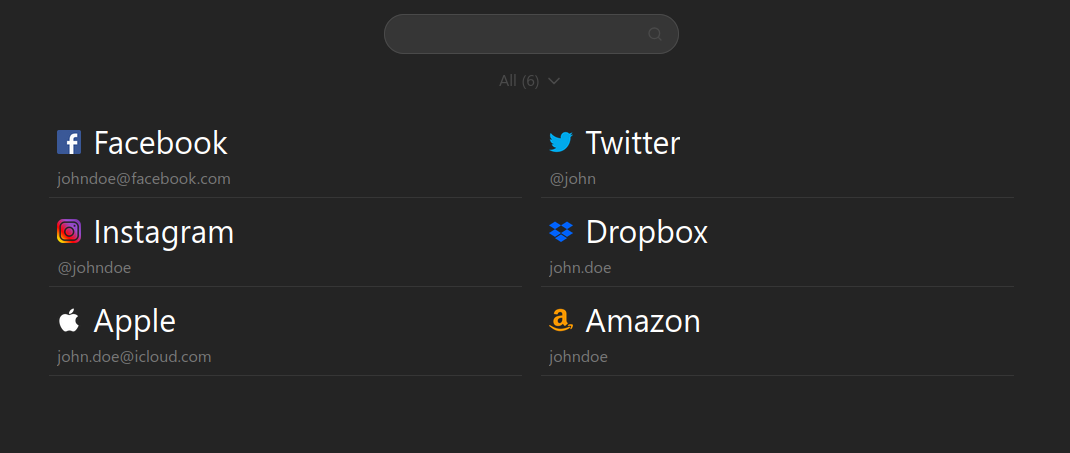
Toggling icons
Not a fan of icons? That's fine. Go to Settings > Options and uncheck Show icons . 2FAuth will stop showing them next to the 2FA account names on the main view.
This is only a visual change: icons are hidden, not deleted, and you can restore them at any time by re-enabling the option.
Getting Official icons
Enable the Get official icons preference at Settings > Options if you want 2FAuth to fetch 2FA icons automatically. You can then choose whether they are fetched from an online icon collection or from an uploaded icon pack.
Icon fetching occurs after a QR code is acquired during the 2FA account registration process. If you are not happy with the icon provided, you can change it by editing the 2FA account at any time.
Icon matching - How does 2FAuth get an icon that matches a newly added 2FA account?
It queries the icon source for an icon whose name matches the 2FA account's Service name.
Because the service name is encoded in the QR codes by the 2FA provider, it's possible that no icon will match due to an unconventional service name. In such case, edit the 2FA account to change the service name, then use the button to manually trigger a new fetch.
Online collection
As mentioned above, 2FAuth can query online icon collections. Several collections are available out of the box, so you only need to select your preferred one before fetching your first icon.
Switch the Fetch icons from toggle to and use the Favorite icon collection preference to choose the default source.
No matter which collection you set in your user preferences, the advanced/edit form always lets you switch to a different icon collection on the fly.
Available collections
- selfh.st
- A collection of self-hosted dashboard icons and logos.
Visit selfh.st - dashboardicons.com
- A collection of 2283 curated icons for services, applications and tools, designed specifically for dashboards and app directories.
Visit dashboardicons.com - 2fa.directory
- List of sites with two factor auth support which includes SMS, email, phone calls, hardware, and software.
Visit 2fa.directory
Icon variants
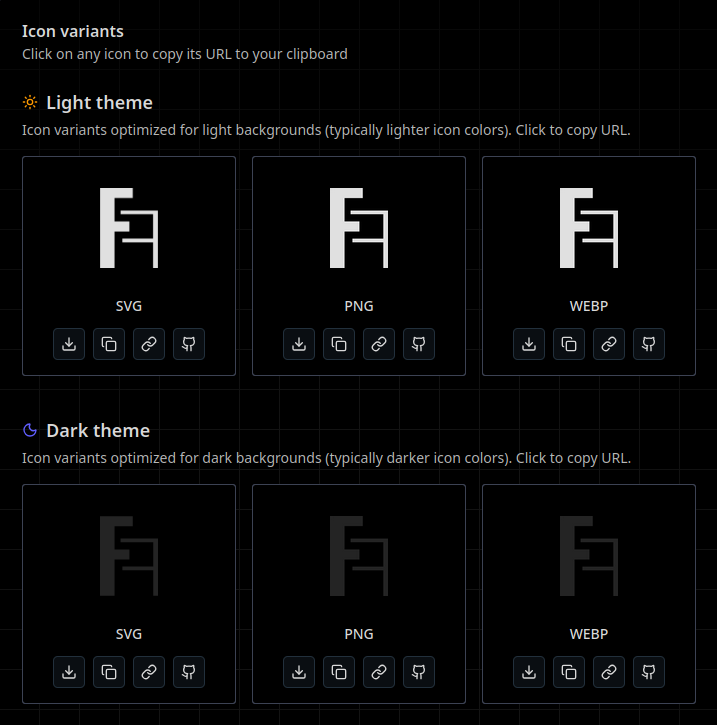
Online icon collections may offer several flavors of their icons. The Icon variant preference lets you choose which variation 2FAuth should fetch first. Unless you enable Strict fetch , the regular variant will be used as a fallback if the selected variant is unavailable at the icon source, given that the regular variant should be always available.
Icon packs
Starting with 2FAuth v6, it is also possible to use an icon pack as a source of icons.
An icon pack is a directory that contains a collection of image files. These are typically icons designed in the same visual style, making it easy to create a cohesive UI.

Supported img formats
2FAuth supports the following image formats for icon pack files: .png, .svg, .webp, .jpg|jpeg, .bmp
Icon pack vs Online collection
Whether you use online collections or icon packs, 2FAuth searches them the same way to find a matching icon. The key difference is that icon packs are stored locally on the 2FAuth server. This means 2FAuth does not make outgoing requests to fetch icons — ideal for instances in closed networks.
Icon packs are great for customizing your workspace, but they have some drawbacks.
- You can host as many icon packs as you want.
- You choose which packs to use; you can even create or compose your own.
- Adding an icon pack requires administrator access to the server.
- It can be hard to find packs with enough icons to cover all needs.
- Icons in packs must be correctly named for 2FAuth to identify matches.
Adding an icon pack
For administrators only
You need read/write access to the server hosting 2FAuth to perform this action.
Icon packs must be stored in [2fauth_install_dir]/storage/app/iconPacks/. Making an icon pack available is as simple as copying its folder to that location. If you run 2FAuth in a Docker container, the directory storage/app/iconPacks/ should be part of the bind-mounted volume you configured. Create it if it doesn't exist.
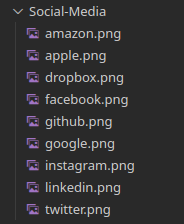
Connect to the server (using ssh, ftp, whatever) and copy the Social-Media directory into storage/app/iconPacks/, that's it!
You can verify the pack was added by opening the user preferences page, switching the icon fetching source to , and then selecting Social-Media in the Icon pack preference.
Icon pack variants
Sometimes designers provide icons in different flavors. 2FAuth supports this via subdirectories.
Let's go back to our example.
The Social-Media pack is finally offered with dark and light versions.
To make them both available in 2FAuth, dispatch the icons into 2 subdirectories: one for the dark icons and one for the light icons. You end-up with storage/app/iconPacks/Social-Media/Dark/ and storage/app/iconPacks/Social-Media/Ligth/.
Back in user preferences, you can then choose either the Social-Media/Dark or the Social-Media/Light icon pack.
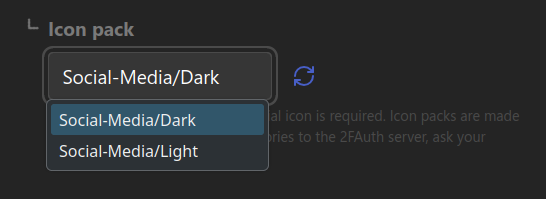
The newly added pack is missing?
Try reloading the list by clicking the button next to the pack selector.
Icons storage
Switching from online collections to icon packs does not affect icons already associated with your 2FA accounts.
When you add a 2FA account with an icon to your 2FAuth dashboard, the underlying image file is actually a copy of the fetched source file. This copy has a unique file name, for example say8GVt3guzVQrZvBcpom5zeZ9C7Wq7GlCVEV1HG.svg and it is stored in the storage/app/public/icons directory. (also in your database if you want, see Icon storage administration)
This means you can safely remove an icon pack, rename it, change its contents, or switch to an online collection, no icon will be impacted. The only way to update a 2FA account's icon is to edit the account and set a new icon via file upload or the button. By the way, this will create a new file with a new name in storage/app/public/icons/, even though you request the same icon as before the update.