

Steam Guard
Steam Guard is the Two-Factor authentication system you can enable to protect your Steam account. It works exactly as any 2FA protection, except that the One-Time Passwords are generated by the Steam Guard Mobile Authenticator only (or received by e-mail).
As Steam does not provide a standard way to use an alternative OTP app like 2FAuth, the workaround is to get the OTP secret thanks to a third-party app. Once recovered, you will be able to use 2FAuth in place of the Steam Mobile Authenticator.
This guide assumes you are a Steam user with some advanced skills who may already be using one of the following third-party apps. Installation and registration processes of the third-party apps are not described here, please refer to their respective documentation.
The secret is a sensitive data. Don't share it with anyone, don't save it anywhere without any protection.
Getting the Steam secret
Steam Desktop Authenticator (SDA)
If your SDA data are encrypted, you need to (temporarily) disable encryption in order to read the secret:
- Click the button of SDA
- Type the current password
- Submit the following 2 forms empty
Encryption if now Off
Get the secret:
- Open your SDA installation directory
- In the
./maFilessubdirectory, open the file*.maFile - The secret is the string surrounded by
secret=and&issuer=Steamin theurifield value
Example
In the following fake .maFile, the secret is D5RTFGT8Z7SW4DYU6I9UH5F4RRE1DF4G
{
    "shared_secret": "KDHC3rsY8+CmiswnXJcE5e5dRfd=",
    "serial_number": "15286247589885632548",
    "revocation_code": "R52287",
    "uri": "otpauth://totp/Steam:johndoe?secret=D5RTFGT8Z7SW4DYU6I9UH5F4RRE1DF4G&issuer=Steam",
    "server_time": 1656059488,
    "account_name": "johndoe",
    "token_gid": "2d5ff8e7zs448e9f",
    "identity_secret": "W~,7%&cXs<8tY&nG=If81zEdrtc=",
    "secret_1": "$=}5NSF@c8o,tjh1zz2=",
    "status": 1,
    "device_id": "android:3dfe0914-d41f-426c-9ba4-b344e563a394",
    "fully_enrolled": true,
    "Session":{...}
}
Don't forget to set SDA encryption back On
steamguard-cli
- Open your steamguard-cli config directory, usually
~/.config/steamguard-cli/ - In the
./maFilessubdirectory, open the file*.maFile - The secret is the string surrounded by
secret=and&issuer=Steamin theurifield value
D5RTFGT8Z7SW4DYU6I9UH5F4RRE1DF4G
{
    ...
    "uri": "otpauth://totp/Steam:johndoe?secret=D5RTFGT8Z7SW4DYU6I9UH5F4RRE1DF4G&issuer=Steam",
    ...
}
Adding to 2FAuth
The manual way
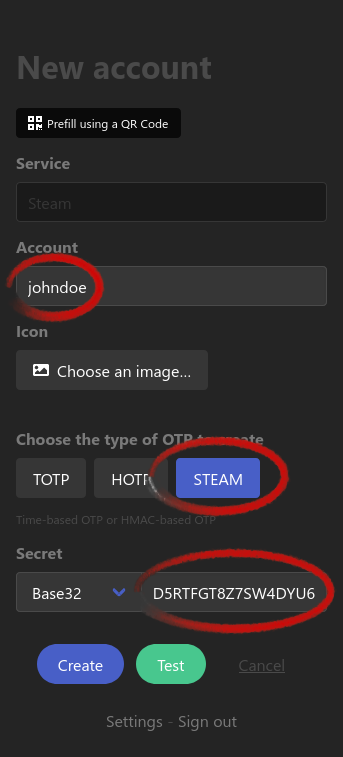
Now that you got your steam secret, simply create a new account in 2FAuth using the advanced form:
- Click the button
- Click the button
- Fill the form:
- Fill in the Account field
- Click the button
- Fill in the Secret field with your Steam secret
- Click the button to save the account
QR code also works
If you feel more confortable with QR codes, you can generate a QR code from the entire uri field of the *.maFile :
otpauth://totp/Steam:johndoe?secret={YourSecretHere}&issuer=SteamThen flash (or upload) the QR code to add the account to 2FAuth, just like any other QR code.
Avoid online generators
As said earlier, the secret is a sensitive data. You should definitely avoid online generators to convert such data.